February 24, 2010 · 5 min · 1021 words · christian
Yesterday out of a sudden, the sound on my Acer Revo stopped working. Don’t ask me why, I didn’t update anything in between New Years eve and today. Just no sound. Tried removing my .asoundrc, tried rebooting, tried powering off; but nothing worked.
Since the Revo was running Jaunty Jackalope, I decided to reinstall the box (yeah, yet again) – but this time with Karmic Koala. Took this forums post and this blog entry as pointer (ie what needed to be installed), and started from there. And guess what … after finishing all that, changing the settings in XBMC – tada sound works. After finishing, I turned the box off and then back on, booted to the “old” installation – guess what .. Sound is working again. I really don’t have a single clue as to why the heck the sound stopped working and the started working without any doing, but I’m glad :-P
As a pointer to myself, here’s a complete list of commands that need to be done to get a working installation of XBMC. Requirement for this is a minimal installation of Jaunty Jackalope/Karmic Koala.
# I need to blacklist the internal WLAN device, since I'm using an external onecat << EOF | sudo tee -a /etc/modprobe.d/blacklist-ath_pci.conf
blacklist ath5k
EOF# Also need to blacklist the not working RAlink driverscat << EOF | sudo tee /etc/modprobe.d/blacklist-ralink.conf
# The below drivers don't work with the Atheros AR5001
# (Linksys WUSB600N)
blacklist rt2800usb
blacklist rt2x00usb
EOF# Add the necessary PPA'scat << EOF | sudo tee -a /etc/apt/sources.list.d/xbmc.list
deb http://ppa.launchpad.net/nvidia-vdpau/ppa/ubuntu karmic main
deb-src http://ppa.launchpad.net/nvidia-vdpau/ppa/ubuntu karmic main
deb http://ppa.launchpad.net/team-xbmc-svn/ppa/ubuntu karmic main
deb-src http://ppa.launchpad.net/team-xbmc-svn/ppa/ubuntu karmic main
EOF# Add the GPG keys to the APT keyringsudo apt-key adv --keyserver keyserver.ubuntu.com
--recv-keys 64234534 40618B66 CEC06767 318C7509
91E7EE5E 64234534sudo aptitude update
# Install necessary prerequisites (like nvidia-glx# for VDPAU rendering)# debhelper needs to be added, otherwise dkms is gonna fail.# I need nvidia-glx-180 because the -190 apparently brings# a large framedrop (as in I'm getting 18 FPS instead of 24)sudo aptitude install nvidia-glx-180 debhelper linux-sound-base
alsa-base alsa-utils
# unmute the Master an PCM channels with alsamixer. Press ESC to quitsudo alsamixer
sudo alsactl store 0# Install XBMC as standalone (i.e. no desktop environment like GNOME)sudo aptitude install xbmc-standalone
# Configure the Xserversudo nvidia-xconfig
# Add the init-script (no need for fancy tty login stuff)cat << EOF | sudo tee -a /etc/init.d/xbmc
#!/bin/sh
### BEGIN INIT INFO
# Provides: inputlirc
# Required-Start: $network
# Required-Stop: $network $remote_fs
# Should-Start: $syslog udev
# Should-Stop: $syslog
# Default-Start: 2 3 4 5
# Default-Stop: 0 1 6
# Short-Description: Starts XBMC standalone
### END INIT INFO
PATH=/usr/sbin:/usr/bin:/sbin:/bin
test -d /var/run || exit 0
test -x /usr/bin/xbmc || exit 0
. /lib/lsb/init-functions
case "$1" in
start)
xinit /usr/bin/xbmc --standalone &
;;
stop)
killall xbmc &>/dev/null
;;
esac
exit 0
EOFsudo update-rc.d xbmc defaults
# Install usplash, configure our resolution and# regenerate the initramfssudo aptitude install usplash usplash-theme-ubuntu
cat << EOF | sudo tee -a /etc/usplash.conf
resx=1920
resy=1080
EOFsudo update-initramfs -u
# Install lircsudo aptitude install lirc inputlirc lirc-modules-source
cat << EOF | sudo tee -a /etc/lirc/lircd.conf
#
# this config file was automatically generated
# using lirc-0.7.1pre2(any) on Mon Jul 4 22:11:52 2005
#
# contributed by
#
# brand: Technisat
# model no. of remote control: TTS35AI
# devices being controlled by this remote: Skystar 2.6D
#
begin remote
name Technisat_TTS35AI.conf
bits 13
flags RC5|CONST_LENGTH
eps 30
aeps 100
one 882 803
zero 882 803
plead 905
gap 112766
toggle_bit 2
begin codes
Power 0x1A8C
Mute 0x1A8D
1 0x1281
2 0x1A82
3 0x1283
4 0x1A84
5 0x1285
6 0x1A86
7 0x1287
8 0x1A88
9 0x1289
0 0x1A80
-/-- 0x128A
A/B 0x1AA3
Red 0x0AAB
Green 0x02AC
Yellow 0x0AAD
Blue 0x02AE
Ok 0x0A97
Up 0x12A0
Down 0x1AA1
Left 0x1291
Right 0x1A90
SFI 0x12AF
Back 0x1AA2
Info 0x028F
# Prog+ 0x1AA0
# Prog- 0x12A1
TV/Radio 0x0293
# Volume+ 0x1A90
# Volume- 0x1291
Menu 0x0A92
Hilfe 0x1A8F
TXT 0x12BC
STOP 0x1AA9
EXT 0x12B8
HILFE2 0x0AB6
end codes
end remote
EOFsudo sed -i -e 's,REMOTE="",REMOTE="TechnoTrend USB IR receiver",' -e 's,REMOTE_MODULES="",REMOTE_MODULES="lirc_serial",' -e 's,REMOTE_DEVICE="",REMOTE_DEVICE="/dev/lirc0",' -e 's,START_LIRCD="false",START_LIRCD="true",' /etc/lirc/hardware.conf
sudo sed -i -e 's,EVENTS="",EVENTS="/dev/input/by-id/usb-Formosa21_USB_IR_Receiver-event-mouse",' -e 's,OPTIONS="",OPTIONS="-g -m 0",' /etc/default/inputlirc
cat << EOF | sudo tee /usr/share/xbmc/system/scrapers/video/nfo-file-scaper.xml
<?xml version="1.0" encoding="utf-8"?>
<!-- Forces XBMC to gather the settings, that are on disk
(ie no downloading of content information -->
<scraper framework="1.0" date="2010-01-02" name="NFO File Scarper" content="movies" language="en" />
EOF# Reboot the systemsudo reboot
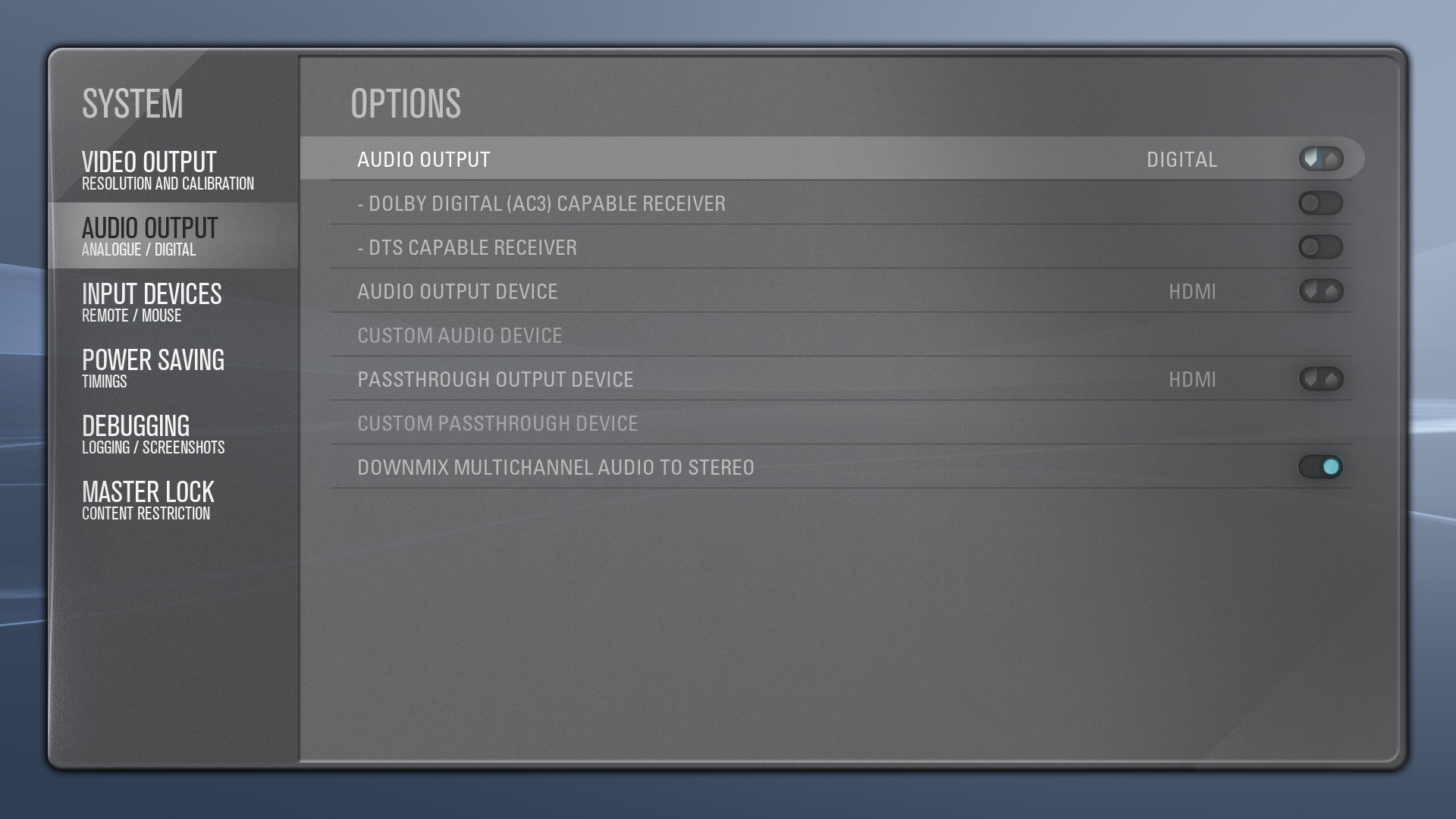
Now we just need to configure the audio output to pipe everything through HDMI. For that change the settings in Settings -> System -> Audio Output like this:
XBMC Audio Output Settings
Or if you like messing with ~/.xbmc/userdata/guisettings.xml:
As for the changed device names of the input device (ie usb-Formosa21_USB_IR_Receiver-event-ir (Jaunty) vs. usb-Formosa21_USB_IR_Receiver-event-mouse (Karmic), just take the Lircmap.xml from here, and change the remote-Line accordingly.